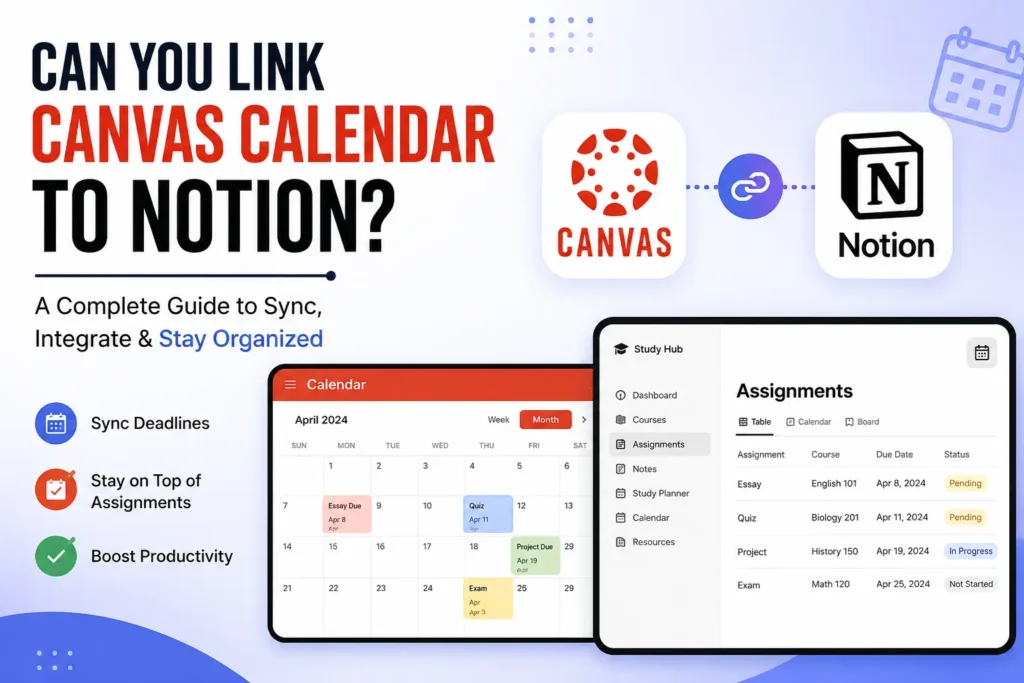

Yes, but not directly. Canvas doesn’t offer a native integration with Notion. However, you can link your Canvas Calendar to Notion using the Canvas iCal (ICS) calendar feed, Notion Calendar, or by syncing through Google Calendar. These methods help you keep track of assignments, class schedules, and deadlines in one place.
Does Canvas Integrate Directly with Notion?
No. Canvas LMS and Notion don’t have a built-in integration. You can’t automatically sync your Canvas assignments to a standard Notion database without using a third-party method.
How Can You Sync Canvas Calendar with Notion?
You can connect your Canvas Calendar to Notion by using one of these methods:
- Notion Calendar with the Canvas iCal (ICS) feed
- Google Calendar as a bridge between Canvas and Notion
- Apple Calendar or Outlook Calendar
- Manual entry into a Notion database
- Automation tools like Zapier or Make for advanced workflows
Is There a Direct Sync Available?
No, a direct sync is not currently available. However, subscribing to your Canvas calendar feed or using an external calendar service allows your Canvas events to update automatically, making it easy to manage your academic schedule within the Notion ecosystem.
🔄 How Does Canvas Calendar Work?
Canvas Calendar is a built-in scheduling tool in Canvas LMS that helps students and instructors manage assignments, quizzes, discussions, and course events. It automatically displays important due dates and upcoming activities from all your enrolled courses in one calendar.
What Is Canvas Calendar?
Canvas Calendar is a centralized calendar that organizes your academic schedule. It shows course deadlines, events, and reminders, making it easier to stay on top of your classes without checking each course individually.
What Does Canvas Calendar Include?
Canvas Calendar can display:
- Assignment due dates
- Quiz and exam schedules
- Discussion deadlines
- Course events
- Instructor-created calendar events
- Personal reminders
How Does Canvas Calendar Sync Events?
Canvas Calendar uses an iCal (ICS) calendar feed, which allows you to subscribe to your schedule in supported calendar apps. When new assignments or events are added in Canvas, subscribed calendars automatically update to reflect the latest changes.
Where Can You Find Your Canvas Calendar URL?
You can find your Canvas calendar URL from the Calendar page in Canvas. This ICS feed link can be copied and used to subscribe to your Canvas schedule in compatible calendar applications like Notion Calendar, Google Calendar, Apple Calendar, and Microsoft Outlook.
🛠️ How to Sync Canvas Calendar with Notion
Although Canvas doesn’t directly integrate with Notion, you can still sync your calendar using a few simple methods. The best option depends on whether you use Notion Calendar, an external calendar app, or a custom Notion workspace.
Method 1: Sync Canvas with Notion Calendar
The easiest way is to subscribe to your Canvas iCal (ICS) calendar feed in Notion Calendar. Once connected, your Canvas assignments and course events automatically appear in your calendar and stay updated when changes are made in Canvas.
Method 2: Sync Through Google Calendar
If you already use Google Calendar, subscribe to your Canvas calendar feed in Google Calendar first. Then, connect your Google Calendar with Notion Calendar to view all your academic deadlines alongside personal events.
Method 3: Use Apple Calendar or Outlook
Canvas also supports Apple Calendar and Microsoft Outlook through its ICS calendar feed. After subscribing, you can manage your schedule across multiple devices and, if supported, connect those calendars with Notion Calendar.
Method 4: Add Assignments to a Notion Database
If you prefer a customized planner, create a Notion database for assignments and manually add due dates from Canvas. This method gives you more flexibility to organize coursework with tags, priorities, progress tracking, and study notes.
Which Method Is Best?
For most students, Notion Calendar with the Canvas ICS feed is the easiest and most reliable way to keep assignments updated automatically. If you need advanced planning and task management, combining Notion Calendar with a Notion database provides the best productivity workflow.
📥 How to Export Your Canvas Calendar
To link your Canvas Calendar with Notion Calendar or another calendar app, you’ll first need to export your Canvas calendar feed. Canvas provides an iCal (ICS) URL that you can use to subscribe to your course calendar and receive automatic updates.
Step 1: Open the Canvas Calendar
Log in to your Canvas LMS account and click Calendar from the navigation menu. This page displays all your course assignments, events, and due dates.
Step 2: Copy the Canvas Calendar Feed
On the Calendar page, locate the Calendar Feed option. Copy the iCal (ICS) URL provided by Canvas. This unique link allows supported calendar apps to sync with your Canvas schedule.
Step 3: Subscribe to the Calendar Feed
Paste the copied Canvas calendar URL into a compatible calendar application, such as:
- Notion Calendar
- Google Calendar
- Apple Calendar
- Microsoft Outlook
Once subscribed, your Canvas assignments and course events will automatically appear in the selected calendar and update whenever changes are made in Canvas.
Can You Edit Canvas Events After Exporting?
No. The exported Canvas calendar feed is read-only. You can view assignments and events in your calendar, but any edits must be made directly in Canvas LMS by you or your instructor. Changes made in Canvas will automatically sync to subscribed calendars.
📅 How to Add Canvas Calendar to Notion Calendar
You can add your Canvas Calendar to Notion Calendar by subscribing to the Canvas iCal (ICS) calendar feed. This allows your assignments, quizzes, and course events to appear automatically in Notion Calendar and stay updated whenever changes are made in Canvas.
Step 1: Copy Your Canvas Calendar URL
Open Canvas LMS and go to the Calendar page. Click Calendar Feed and copy the iCal (ICS) URL provided by Canvas.
Step 2: Open Notion Calendar
Launch Notion Calendar on your desktop or web browser and sign in to your account.
Step 3: Add the Canvas Calendar
In Notion Calendar, choose the option to add or subscribe to a calendar and paste your copied Canvas calendar URL (ICS feed). Confirm the subscription to import your Canvas schedule.
Step 4: View Your Canvas Events
Once connected, your Canvas assignments, class schedules, and course deadlines will appear in Notion Calendar alongside your other calendars, making it easier to manage your academic schedule.
Will Canvas Calendar Update Automatically?
Yes. Since Notion Calendar subscribes to the Canvas iCal feed, new assignments and schedule changes made in Canvas LMS are automatically reflected in your calendar. However, sync times may vary depending on how often the calendar refreshes.
🤖 Can You Automate Canvas and Notion?
Yes, you can automate certain tasks between Canvas and Notion, but there isn’t a built-in integration. Using third-party automation tools, you can reduce manual work and keep your study planner organized.
Use Zapier
Zapier connects Canvas with thousands of apps. While direct Canvas-to-Notion workflows are limited, you can create automations through supported apps like Google Calendar to keep your schedule updated.
Use Make (Formerly Integromat)
Make offers more advanced automation than Zapier. It lets you build custom workflows that sync Canvas events, update Notion databases, and automate repetitive tasks with minimal effort.
Use the Canvas API
If you’re comfortable with coding, the Canvas API allows you to retrieve assignments, due dates, and course information. You can use this data to create a custom integration with your Notion workspace through the Notion API.
What Can You Automate?
With the right setup, you can automate tasks such as:
- Syncing assignment due dates
- Updating study planners
- Creating new tasks in Notion
- Organizing coursework by subject
- Tracking upcoming deadlines
Are There Any Limitations?
Yes. Since Canvas and Notion don’t support a native integration, some workflows require third-party tools or manual setup. Additionally, available automation features depend on the apps and services you use.
💡 Best Ways to Manage Canvas Assignments in Notion
Using Canvas and Notion together is a great way to stay organized throughout the semester. While Canvas helps you track course activities, Notion gives you the flexibility to create a personalized study planner and manage your workload more efficiently.
Create an Assignment Tracker
Build a Notion database to organize all your Canvas assignments. Include properties such as course name, due date, priority, status, and notes for quick access.
Track Assignment Deadlines
Add due dates from your Canvas Calendar to Notion so you can view upcoming assignments and never miss important deadlines.
Organize Courses with Tags
Use tags or categories to group assignments by subject or course. This makes it easier to filter tasks and focus on specific classes.
Build a Weekly Study Planner
Create a weekly dashboard that combines your assignments, class schedule, and study sessions in one place. This helps you plan your time more effectively.
Link Notes to Assignments
Connect your lecture notes, reading materials, and project documents directly to each assignment. Keeping everything in one workspace improves productivity and reduces time spent searching for information.
Review Your Progress Regularly
Update your assignment status as you complete tasks. Tracking your progress in Notion helps you stay motivated and ensures you keep up with coursework throughout the semester.
⚠️ Common Problems and Solutions
While syncing Canvas Calendar with Notion is straightforward, you may encounter a few issues. Here are the most common problems and how to fix them.
Canvas Calendar Not Updating
If your Canvas events aren’t updating in Notion, wait a few minutes and refresh your calendar. Calendar subscriptions may take some time to sync new assignments and schedule changes.
Invalid Canvas Calendar URL
If the calendar won’t connect, make sure you’ve copied the correct Canvas iCal (ICS) calendar URL. An incomplete or incorrect link will prevent the calendar from syncing.
Missing Assignments or Events
Some assignments or events may not appear if they don’t have due dates or haven’t been published by your instructor. Check your Canvas Calendar to confirm they’re visible.
Duplicate Calendar Events
Duplicate events can occur if you’ve subscribed to the same Canvas calendar multiple times. Remove duplicate calendar subscriptions and keep only one active feed.
Incorrect Time Zone
If assignment deadlines appear at the wrong time, verify that the time zone settings in both Canvas and Notion Calendar match your local time.
Can’t Add Canvas Calendar to Notion
If Notion doesn’t accept your calendar feed, ensure you’re using Notion Calendar, which supports calendar subscriptions. Standard Notion databases don’t currently support importing ICS calendar feeds directly.
📊 Canvas Calendar vs Notion Calendar
Both Canvas Calendar and Notion Calendar help you manage your schedule, but they serve different purposes. Canvas Calendar is designed for tracking course assignments and academic events, while Notion Calendar offers more flexibility for organizing personal tasks, meetings, and study plans.
| Feature | Canvas Calendar | Notion Calendar |
|---|---|---|
| Primary Purpose | Course schedules and assignments | Personal and professional scheduling |
| Assignment Tracking | ✅ Automatic | ❌ Manual or synced via calendar feed |
| Course Integration | ✅ Native with Canvas LMS | ❌ No direct Canvas integration |
| Calendar Sync | ✅ Supports iCal (ICS) export | ✅ Supports calendar subscriptions |
| Task Management | Limited | Advanced |
| Notes & Databases | ❌ No | ✅ Yes |
| Collaboration | Limited | ✅ Team collaboration |
| Customization | Basic | Extensive |
| Best For | Students using Canvas LMS | Planning, productivity, and project management |
Which One Should You Use?
If your goal is to track course deadlines, Canvas Calendar is the better choice because it automatically displays assignments and class events. However, if you want a complete productivity system with tasks, notes, and study planning, Notion Calendar is the better option.
For the best experience, use Canvas Calendar to manage course updates and Notion Calendar to organize your overall schedule. Combining both gives you a centralized view of your academic and personal commitments.
✅ Best Method for Students
The best way to manage your coursework is to use Canvas Calendar for tracking assignments and Notion for planning and organization. This combination helps you stay on top of deadlines while keeping your study materials, notes, and tasks in one place.
Use Canvas for Course Updates
Rely on Canvas Calendar for assignment due dates, quizzes, exams, and instructor announcements. Since it’s directly connected to your courses, it always displays the latest schedule.
Use Notion for Planning
Organize your coursework in Notion by creating assignment trackers, study schedules, and class notes. You can also set priorities, monitor progress, and build a personalized study dashboard.
Sync Your Calendar for Better Organization
If you use Notion Calendar, subscribe to your Canvas iCal (ICS) calendar feed to view course deadlines alongside your personal schedule. This keeps everything in one calendar and reduces the chance of missing important dates.
Combine Canvas and Notion for Maximum Productivity
Using Canvas and Notion together gives you the best of both platforms. Canvas keeps your academic schedule up to date, while Notion provides a flexible workspace for planning, note-taking, and task management, helping you stay organized throughout the semester.
✅ Conclusion
While Canvas Calendar can’t be linked directly to a standard Notion database, you can still keep your academic schedule organized by using the Canvas iCal (ICS) calendar feed, Notion Calendar, or syncing through Google Calendar. These methods let you view assignments, exams, and course events in one place, making it easier to manage your workload.
For the best results, use Canvas to track course updates and Notion to organize tasks, notes, and study plans. Combining both tools creates a simple and effective system for staying productive and never missing important deadlines.
❓FAQs
Below are answers to the most common questions about linking Canvas Calendar to Notion. These FAQs will help you understand the available sync methods, integration options, and how to manage your academic schedule more effectively.
Can you link Canvas Calendar to Notion?
Yes, you can link it using the Canvas iCal (ICS) calendar feed or Notion Calendar, but not through a direct integration.
Does Canvas have a calendar URL?
Yes, Canvas provides an iCal (ICS) calendar URL that you can subscribe to in supported calendar apps.
Can Notion import a Canvas calendar?
Yes, Notion Calendar can subscribe to the Canvas ICS calendar feed, but standard Notion databases cannot.
How do I export my Canvas Calendar?
Open Canvas Calendar, click Calendar Feed, and copy the ICS calendar URL.
Can I sync Canvas with Google Calendar first?
Yes, you can subscribe to the Canvas calendar feed in Google Calendar and then use it with Notion Calendar.
Why isn’t my Canvas Calendar syncing?
Sync issues are usually caused by an incorrect ICS URL, delayed updates, or time zone mismatches.
Can I automatically sync Canvas assignments to Notion?
No, not directly, but you can use Notion Calendar, Google Calendar, or automation tools like Zapier or Make.
Is Notion good for managing Canvas assignments?
Yes, Notion is excellent for organizing assignments, study schedules, and course notes in one workspace.